PlayStation: An In-Depth Guide to Choosing, Setting Up, and Using a Console
PlayStation is a broad gaming ecosystem rather than a single product. It includes consoles, digital and physical games, controllers, online services, accessories, parental controls, and account-based features. The right setup depends on your budget, display, internet connection, preferred games, and whether you share the console with other people.
This guide covers the main decisions without assuming a particular console generation or current product lineup. Specifications, compatibility, prices, software features, and subscription terms can change, so check the official PlayStation website and the retailer or service terms in your region before buying.
1. Decide what you want from PlayStation
Before comparing consoles or accessories, clarify how you expect to use the system. A person who mainly plays single-player games may have different priorities from a household that wants local multiplayer, online gaming, or a large digital library.
- Single-player gaming: Prioritize the games you want to play, image quality, quiet operation, storage, and comfort during long sessions.
- Online multiplayer: Check the requirements for each game, your internet connection, headset needs, and any applicable online-service subscription.
- Family use: Consider multiple user profiles, parental controls, age ratings, spending restrictions, and easy switching between accounts.
- Digital purchasing: Storage capacity, account security, download limits, and the ability to manage your library are especially important.
- Physical games: A disc-capable console may be preferable if you buy used games, borrow discs, collect boxed editions, or want a physical resale option.
- Media and general entertainment: Confirm which streaming apps and media features are supported in your country and on the specific model.
2. Choosing between PlayStation console options
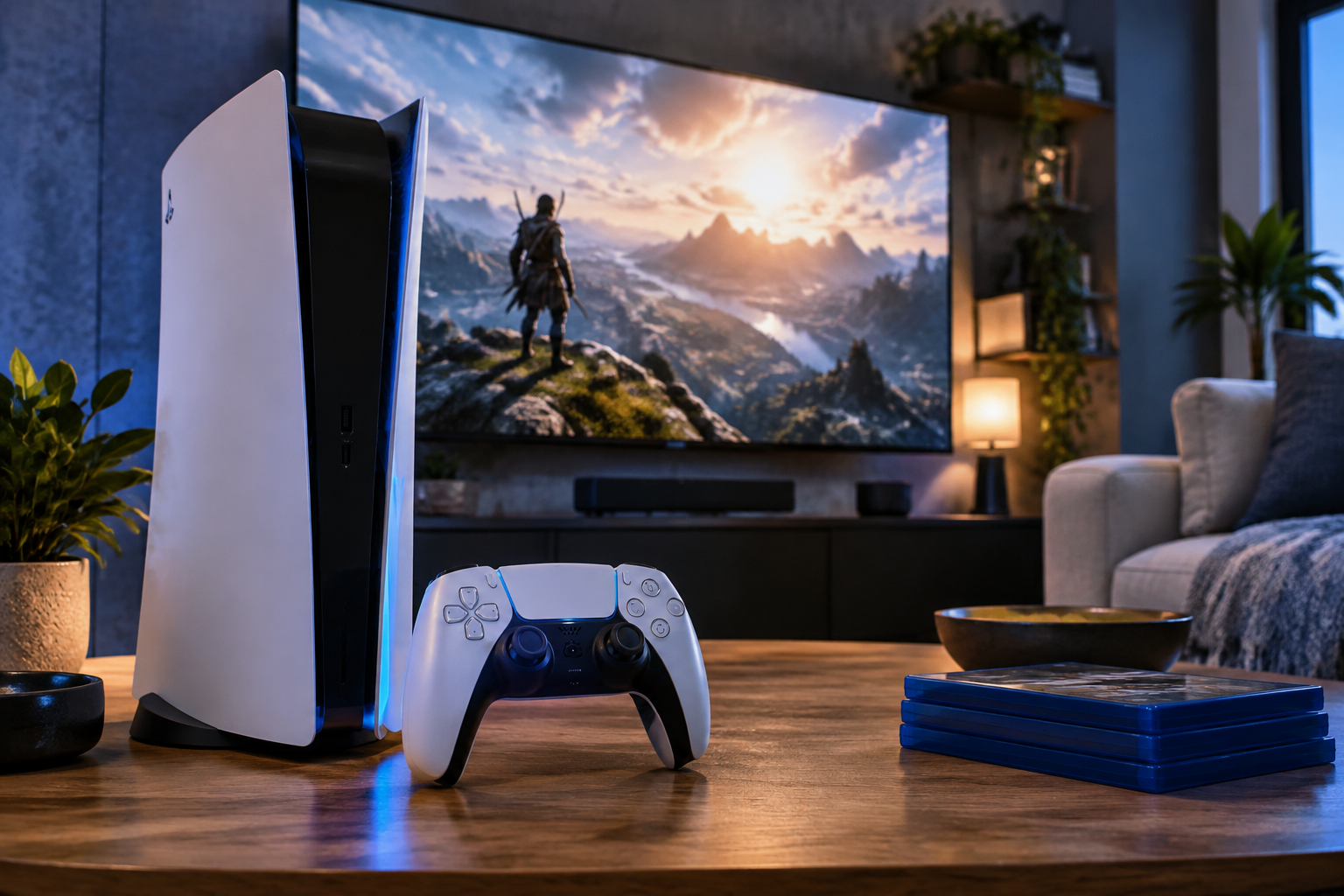
PlayStation consoles can differ in size, performance, storage, disc support, and included accessories. Product names and configurations may change over time, so compare the exact model number rather than relying only on a retailer’s shortened description.
Performance and display
More capable hardware can support higher resolutions, steadier frame rates, faster loading, or enhanced graphical effects in compatible games. However, the visible benefit depends on your television or monitor, viewing distance, the game itself, and the display settings you use.
Check whether your display supports the features you value, such as a suitable resolution, high refresh rate, HDR, and the correct HDMI standard. A premium display is not essential for enjoying PlayStation, but a mismatched cable, port, or setting can prevent you from getting the expected result.
Disc drive or digital-only use
A disc-capable model offers flexibility for physical games and, where supported, other disc-based media. A digital-only model can be simpler and may suit people who buy exclusively from the PlayStation Store, but it makes you more dependent on downloads, account access, and available storage.
Think beyond the initial purchase price. Compare the cost and convenience of the games you are likely to buy, including second-hand or borrowed physical copies if those matter to you. Also check whether a particular digital model can accept a separately purchased disc drive and whether that option is available in your region.
Storage capacity
Modern games can occupy substantial storage, and updates may require additional temporary space. Built-in capacity is also not always equal to the amount available for games and applications because some space is reserved for system software.
If you expect to keep many large games installed, compare expansion options and compatibility requirements before buying. External storage may be useful for storing or playing certain types of content, but not every drive supports every function. Follow Sony’s published requirements for compatible storage hardware.
Size, placement, and ventilation
Measure the space where the console will sit, including clearance for cables and airflow. Do not place it inside a tightly enclosed cabinet or directly on a heat-producing device. Use the supplied stand or mounting method when the product instructions require one, and keep ventilation openings free of dust and obstructions.
3. Understand the PlayStation account and store system
A PlayStation account connects your profile with digital purchases, saved data features, friends, settings, and online services. Protect it as carefully as you would any other important online account.
Account security checklist
- Use a unique password that is not reused on other services.
- Enable available two-step verification or other account-security features.
- Review sign-in devices and account details periodically.
- Do not share your password or verification codes.
- Be cautious with messages that request urgent payment, credentials, or account confirmation.
- Use purchase restrictions and a passcode if other people can access the console.
Digital purchases and licenses
Digital games and add-ons are generally linked to the account used to obtain them, subject to the applicable service terms. Before buying, confirm that you are signed into the intended account and that the game supports your console. Review edition names carefully because bundles can include different combinations of base games, expansions, virtual items, or upgrade rights.
Keep receipts or transaction emails where practical. If a purchase does not appear, check the account, transaction history, download list, console storage, and service status before contacting official support.
4. Set up a new PlayStation console
Step 1: Prepare the space and network
Place the console in a ventilated location, connect it to a suitable display, and use a reliable internet connection. A wired Ethernet connection can be useful for downloads and online play, while a strong wireless connection may be sufficient for many households.
Step 2: Complete system setup
Follow the on-screen instructions to select language and region settings, connect to the internet, sign in or create accounts, and install available system updates. Use the correct date, time, and privacy settings, particularly if the console will be shared.
Step 3: Configure users and family settings
Create separate profiles for regular players. This keeps saves, recommendations, trophies, and preferences distinct. For children, use a child account where available and configure age limits, communication controls, spending permissions, and play-time rules appropriate to your household.
Step 4: Install essential games and applications
Download only what you need initially, especially if storage or internet bandwidth is limited. Large downloads can take time and may be affected by network congestion, sleep-mode settings, or background activity.
Step 5: Test the complete setup
Check the controller, audio output, display mode, network connection, user profiles, and game launching. Testing these basics early makes it easier to identify whether a later problem comes from the console, a cable, the display, the network, or an individual game.
5. Games, editions, and compatibility
Read a game’s product page carefully before buying. Important details can include supported console generation, single-player or multiplayer requirements, language options, storage needs, age rating, accessibility features, and whether an online connection is required.
Physical versus digital games
| Factor | Physical game | Digital game |
|---|---|---|
| Storage | Still may require installation and updates | Requires a download and local storage |
| Sharing | Can often be lent or resold, subject to practical and regional limitations | Usually tied to the purchasing account and service terms |
| Convenience | Requires inserting and storing the disc | Can be launched without changing discs |
| Availability | Depends on stock and retailer supply | Depends on store access and account availability |
| Updates | May still require internet downloads | Downloads the game and later updates |
Backward compatibility and upgrades
Compatibility varies by title and console generation. Do not assume that every older game, save file, accessory, or upgrade path works on every newer system. Check the official compatibility information for the specific game and console. If you are moving from an older PlayStation, plan how you will transfer saves, reinstall games, and access previously purchased content.
6. Subscriptions and online play
PlayStation subscription plans may provide different combinations of online multiplayer access, monthly or catalog games, discounts, cloud-related features, and other benefits. The exact contents, pricing, renewal rules, and availability can vary by country and can change over time.
Choose a plan based on benefits you will actually use rather than the number of features listed. Check whether a game requires a subscription for online multiplayer, whether a catalog title remains playable only while included and subscribed, and how automatic renewal can be turned off. A subscription is not always necessary for offline single-player gaming.
7. Controllers, audio, and accessories
Controllers
Consider button layout, battery or charging arrangements, wireless range, comfort, accessibility needs, and the number of players. Keep firmware updated when prompted, and use an appropriate charging cable or charging accessory.
Headsets and microphones
A headset can improve communication and immersion, but audio problems are often caused by muted microphones, incorrect output settings, loose connections, or chat-balance controls. Check both the console settings and the game’s own voice-chat settings.
Charging and cable management
Use compatible cables and power equipment. Avoid routing cables where they can be pulled, pinched, or exposed to heat. If a controller will not charge, test another compatible cable and port, inspect for visible damage, and allow the controller to reconnect before assuming the battery has failed.
8. Privacy, parental controls, and responsible use
Privacy settings can control who may contact a player, view activity, join games, or send requests. Review these settings for each user rather than assuming one console-wide option covers everyone.
For children and teenagers, combine technical controls with conversation. Explain age ratings, in-game purchases, personal-information risks, respectful communication, and what to do if another player behaves inappropriately. No automated control replaces supervision and clear household rules.
In-game purchases deserve particular attention. Disable or restrict spending where appropriate, require a password for purchases, and explain that virtual items may have limited or no resale value. Review the rules for refunds and cancellations in your jurisdiction and under the relevant store terms.
9. Improve downloads and online play
- Use a wired connection when practical, especially if wireless interference is common.
- Pause other large downloads or streaming activity during important game sessions.
- Place the console within a reasonable range of the router if using Wi-Fi.
- Restart the console and networking equipment when a connection problem appears temporary.
- Check whether the problem affects one game or all online services.
- Use the console’s built-in network test, but remember that a test result is only a snapshot of conditions.
Low download speed and high in-game latency are not always the same problem. A fast connection can still experience lag because of wireless interference, household traffic, router conditions, distance to a game server, or issues outside your home.
10. Common troubleshooting steps
The console will not turn on
Check the power cable and wall outlet, disconnect unnecessary accessories, and try a controlled restart if the system provides one. If there is a burning smell, unusual heat, visible damage, or repeated shutdown, stop using the equipment and contact official support or a qualified technician.
The display shows no signal
Confirm the correct input on the television or monitor, reseat the HDMI cable, try another suitable port or cable, and restart both devices. If possible, test the console with another display. Avoid changing several settings at once because that makes the cause harder to identify.
A game crashes or will not start
Check for game and system updates, restart the console, confirm sufficient free storage, and determine whether other games work normally. If only one title is affected, consult the publisher’s support information as well as PlayStation support.
Downloads are stuck
Check the network connection, available storage, account status, and any service alerts shown by official channels. Pause and resume the download or restart the console if appropriate. Do not repeatedly delete and reinstall content before confirming that the problem is not account- or network-related.
The controller disconnects
Charge it, reconnect it using a compatible USB cable, remove possible wireless interference, and test another controller if available. If the issue persists across systems or cables, the controller may need official assessment.
11. Maintain the console safely
Keep the console dry, ventilated, and free from excessive dust. Clean external surfaces with suitable equipment according to the manufacturer’s guidance, and do not insert liquids or unapproved objects into openings. Install system updates from official sources and avoid unofficial modifications that could create security, compatibility, or warranty issues.
Do not move a console while a disc is actively spinning unless the instructions for that model specifically allow it. Handle discs and cables by their edges and store them away from heat, moisture, and direct sunlight.
12. A practical PlayStation buying checklist
- List the games and types of play that matter most to you.
- Decide whether you need physical discs.
- Check display compatibility and available space.
- Estimate how much storage you will need.
- Compare the full setup, including a second controller, headset, storage, and subscription if needed.
- Confirm regional availability, warranty terms, returns, and retailer reputation.
- Check compatibility for older games, accessories, and saved data if upgrading.
- Review account security and family-control features before handing over the console.
Decision factors at a glance
| If you care most about... | Pay particular attention to... |
|---|---|
| Lowest overall cost | Console configuration, game prices, storage expansion, and subscription renewal |
| Physical game ownership | Disc support, drive availability, and space for discs |
| Best visual experience | Console performance, display capabilities, HDMI connection, and compatible games |
| Large game library | Storage capacity, expansion support, and download speed |
| Family sharing | User profiles, parental controls, spending limits, and privacy settings |
| Competitive online play | Network stability, latency, controller comfort, and communication tools |
Frequently asked questions
Do I need an internet connection to use PlayStation?
An internet connection is not always required for every function or game. It may be needed for initial setup, updates, digital downloads, account services, online multiplayer, cloud features, or games designed around online connectivity. Check the requirements for each title.
Is a subscription required to play games?
Not generally for every game. Some online multiplayer features may require a qualifying subscription, while offline single-player games may not. Requirements differ by title and service terms.
Should I buy digital or physical games?
Choose digital if instant access and a disc-free library matter most. Choose physical if you value borrowing, collecting, buying used games, or having a resale option. Consider storage and account dependence as well as the console’s disc support.
How much storage do I need?
There is no universal amount because game sizes, update sizes, and personal habits vary. If you intend to keep many large games installed, prioritize a model with more usable capacity or a supported expansion option.
Can family members share games?
Sharing capabilities depend on account settings, console features, game licenses, and the applicable service terms. Use separate user profiles and review official guidance before relying on sharing for a household setup.
Why is my game lagging when my internet seems fast?
Bandwidth is only one factor. Lag can result from latency, wireless interference, local congestion, router problems, game-server distance, or an issue with the game’s service. Test other online games and devices to narrow down the source.
When should I contact PlayStation support?
Contact official support when account access, purchases, warranty matters, repeated hardware faults, or persistent service problems cannot be resolved with basic checks. Have the console model, error code, account details, and a clear description of what happened ready, while keeping passwords and verification codes private.
Disclaimer
This article provides general consumer information, not product-specific technical, financial, legal, or professional advice. Features, compatibility, prices, subscription terms, warranty coverage, and consumer rights vary by product, country, and date. Verify important details with official PlayStation documentation, the relevant retailer, and applicable local authorities or professionals.