Xbox Explained: How to Choose a Console, Set It Up, and Get the Most From It
Xbox is more than a single console. It is an ecosystem that can include a console, digital and physical games, online multiplayer, subscriptions, cloud saves, accessories, a Microsoft account, and in some cases cloud gaming on supported devices.
The right setup depends on how you play. A person who mainly downloads games may value internal storage and digital convenience, while someone with a large disc collection may need a disc drive. Families may prioritize parental controls and multiple accounts, and occasional players may prefer a lower-commitment way to access games.
This guide explains the main Xbox choices without assuming that one model, subscription, or accessory is best for everyone.
What is Xbox?
Xbox is Microsoft's gaming platform. It includes Xbox consoles, Windows PC gaming services, Xbox accessories, the Xbox mobile app, and account-based features such as achievements, friends lists, purchases, and saved progress.
Many Xbox features depend on the specific console, game, account, region, internet connection, and subscription available at the time. Service names, game libraries, supported devices, and terms can change, so check Microsoft's current product pages before making a purchase.
Choosing an Xbox console
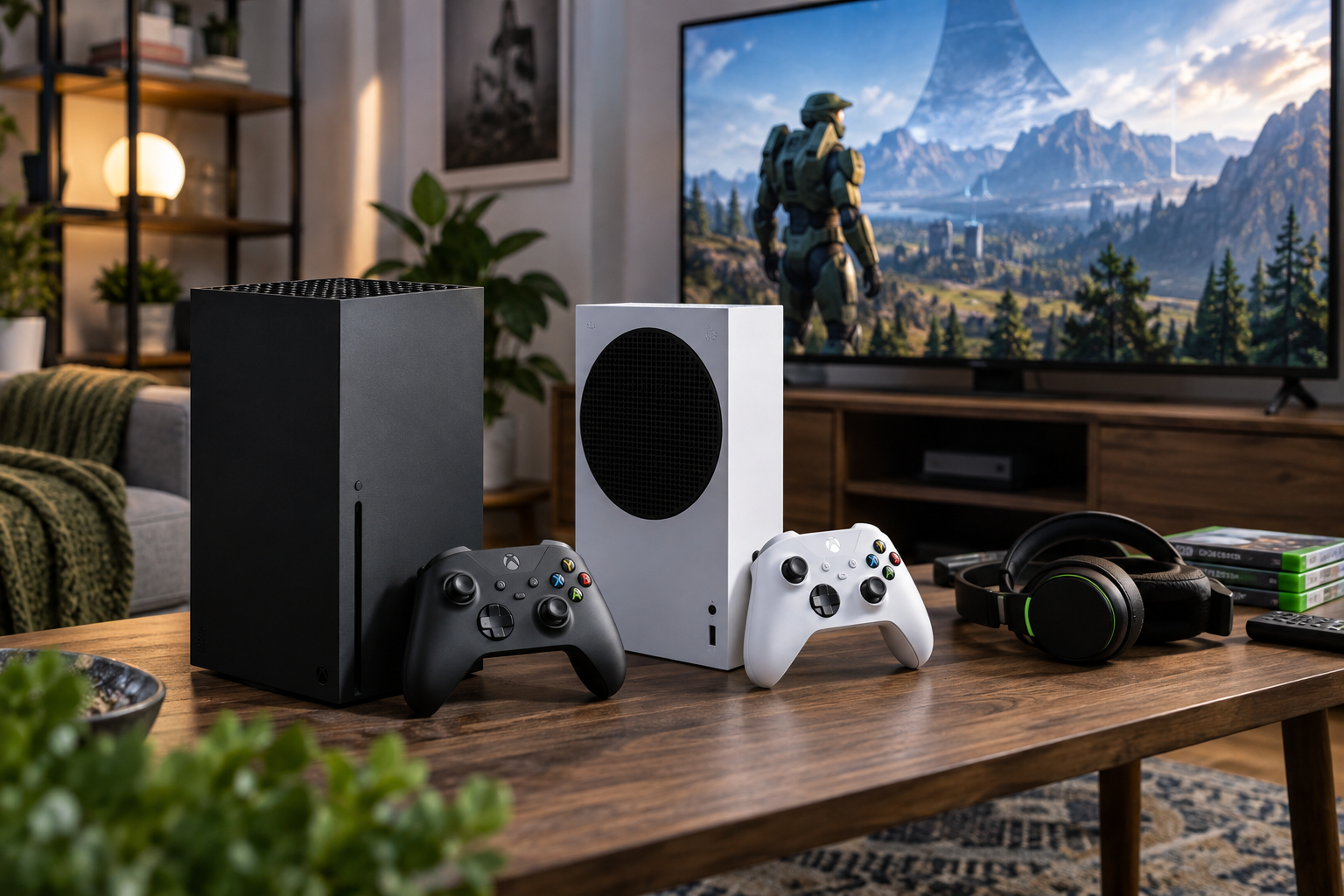
Xbox consoles generally fall into two broad categories: a higher-performance model designed for demanding games and a smaller, lower-cost model focused on digital play. Exact model names, storage configurations, and availability may vary by market and over time.
1. Performance and image quality
A more powerful console may offer higher resolution targets, steadier frame rates, faster loading, or more graphical features in supported games. These benefits are most noticeable if you have a modern television or monitor, sit relatively close to the screen, and care about performance settings.
A smaller or less powerful model can still provide access to many of the same games, but some titles may use different resolution, visual, storage, or performance settings. Review each game's requirements rather than assuming every title behaves identically on every console.
2. Disc drive versus digital-only play
A console with a disc drive can be useful if you:
- Already own compatible physical games
- Buy or borrow used games
- Want to resell or lend eligible discs
- Prefer physical editions or boxed collections
A digital-only console may suit you if you:
- Buy nearly all games digitally
- Want a smaller or simpler setup
- Do not need to use discs
- Are comfortable depending on account access and downloads
A disc is not always a complete substitute for installation or internet access. Some games require updates, additional downloads, or online services, and digital purchases are normally tied to an account rather than being transferable like a physical item.
3. Storage
Modern games can occupy substantial storage, and the space shown on a box or product page is not always the space available for games after system software is installed. Consider how many games you keep installed, whether you use large downloadable content packs, and whether your internet connection makes reinstalling inconvenient.
Expandable storage options may provide additional capacity, but compatibility and performance depend on the type of drive and the console. A standard external USB drive may be useful for storing or playing some backward-compatible titles, while newer games may require faster dedicated expansion hardware to run directly. Verify compatibility before buying.
4. Your display and home network
Before choosing a console, check your television or monitor's inputs, resolution, refresh rate, high dynamic range support, and audio connections. The console cannot provide an output feature that the display or cable does not support.
For online multiplayer and large downloads, wired Ethernet is often the simplest way to reduce wireless interference. Wi-Fi can work well, but placement, network congestion, router quality, and the distance between the console and router all matter.
Games and backward compatibility
Xbox games may be available as physical discs, digital purchases, downloads through a subscription, or streamed experiences where supported. Availability and functionality vary by title and region.
Backward compatibility allows selected games from earlier Xbox generations to work on newer consoles. It is not universal. Some games may run through a compatible digital license, an inserted disc, or a modern re-release, while others may not be supported. Check the individual game listing before relying on compatibility.
Cross-play and cross-progression are also game-specific. Cross-play may allow people on different platforms to play together, while cross-progression may synchronize progress across platforms. Both may require linked accounts or separate publisher services.
Understanding Xbox subscriptions
Xbox subscriptions can provide combinations of online multiplayer access, game catalogs, member discounts, cloud gaming, or other benefits. The exact features depend on the plan, the game, the console, the region, and current service terms.
Before subscribing, ask:
- Does the plan include the games you actually want to play?
- Can you play the included games on your preferred device?
- Is online multiplayer required for the games you play?
- Will a game remain accessible if it leaves the catalog?
- Are cloud saves or other features available without the subscription?
- Will the subscription renew automatically?
Subscriptions are usually best viewed as access services, not permanent ownership. If a game leaves a catalog or your membership ends, you may need to buy it separately to continue playing, subject to the applicable terms.
Buying digital games versus physical games
Digital purchases
Digital games are convenient because they can be downloaded without changing discs and are usually linked to your account. They may also support preloading before release, depending on the title and platform rules.
However, digital purchases require sufficient storage and usually depend on the account used to buy them. Account security is therefore important. Use a strong, unique password, enable multifactor authentication where available, and avoid sharing login credentials.
Physical purchases
Physical games can be easier to lend, resell, or buy second-hand, but they require suitable hardware and storage space. A disc may function as a license check or installation source rather than containing every file needed to play.
Used physical games may include expired promotional codes or downloadable content that cannot be reused. Check what is included before assuming that a second-hand copy contains all advertised extras.
Setting up an Xbox
- Choose a ventilated location. Keep air vents clear and avoid enclosing the console in a tight cabinet.
- Connect the display and power. Use compatible cables and connect the console directly to a suitable power source.
- Connect to the internet. Ethernet is an option; otherwise follow the wireless setup process.
- Sign in or create a Microsoft account. Use the account that should own purchases and retain saved progress.
- Install system updates. Updates can improve security, compatibility, and features, but may take time and storage.
- Configure privacy settings. Review communication, multiplayer, profile visibility, and data-sharing controls.
- Set up controllers and accessories. Pair each device and install firmware updates if prompted.
- Install or stream a game. Check the game's storage needs, required updates, and online requirements.
Accounts, family settings, and online safety
Each regular player should ideally have a separate account. Separate accounts help keep achievements, saves, recommendations, communication permissions, and purchases distinct.
For children, a family group can help manage screen time, content access, spending permissions, communication, and online interactions. Settings should be reviewed periodically because game features, account tools, and household needs change.
Practical safety measures include:
- Using a passkey, password, or other sign-in protection
- Enabling multifactor authentication where available
- Requiring approval for purchases
- Limiting voice and text communication when appropriate
- Teaching children not to share personal information
- Using blocking and reporting tools for unwanted contact
Controllers and accessories
The standard wireless controller is sufficient for many players, but accessories can solve specific problems.
- Rechargeable battery solutions: Reduce disposable battery use, but check charging method and compatibility.
- Headsets: Useful for voice chat and private audio. Check microphone quality, comfort, platform support, and volume controls.
- Storage expansion: Helpful for large libraries, but confirm the correct expansion format.
- Media remotes: Convenient if the console is also used for supported video applications.
- Specialized or adaptive controllers: May improve accessibility for players with particular mobility needs. Compatibility and configuration vary.
- Charging docks: Can reduce cable clutter, but confirm that the dock supports your controller model.
Third-party accessories are not automatically equivalent to official products. Check safety certifications, warranty terms, compatibility details, and return policies before buying.
Accessibility features
Xbox includes accessibility settings and compatible devices intended to make gaming more flexible. Depending on the console and game, useful options may include button remapping, screen narration, magnification, captions, color adjustments, controller customization, and copilot-style shared control.
Accessibility is not identical across all games. A game may have its own subtitle, contrast, difficulty, or control options, so review both console-level and game-level settings.
Cloud gaming and playing away from the console
Some Xbox services support cloud gaming on selected devices and in supported regions. Cloud gaming can reduce the need to install a game, but the experience depends heavily on connection speed, latency, network stability, device support, and service availability.
Cloud play is different from remote play. Cloud gaming runs the game on a remote service, while remote play streams a game from your own console. Both can be affected by network conditions, and neither necessarily provides the same experience as playing locally.
Common troubleshooting steps
The console will not connect to the internet
- Restart the console and router.
- Check whether other devices can access the internet.
- Try a wired connection if possible.
- Move the console closer to the router or reduce interference.
- Check the service status page if account or multiplayer features are unavailable.
A game will not launch
- Check for console and game updates.
- Confirm that the correct account is signed in.
- Check whether the game requires a disc, subscription, or online connection.
- Restart the console.
- Check available storage and reinstall only after confirming that saved data is synchronized or backed up.
The console is overheating or shutting down
- Move it to an open, ventilated position.
- Keep dust and objects away from the vents.
- Do not place it on soft surfaces that block airflow.
- Allow it to cool before using it again.
- Contact official support if the problem continues or the console shows an error code.
Questions to ask before buying
- Will I buy mostly digital games, physical games, or both?
- Do I need the highest available performance, or is a smaller console sufficient?
- How many games do I expect to keep installed?
- Does my TV or monitor support the features I care about?
- Is my internet connection reliable enough for downloads, multiplayer, or cloud gaming?
- Will several people use the console?
- Do I need child accounts or accessibility features?
- Would a subscription be useful for my actual play habits?
- Am I comparing the complete setup, including storage, extra controllers, games, and online services?
- What are the warranty, return, repair, and regional support terms?
Frequently asked questions
Do I need an internet connection to use Xbox?
An internet connection is commonly needed for initial setup, updates, digital downloads, online multiplayer, account services, and some game features. Offline play may be possible for eligible games after setup, but requirements vary by title and account configuration.
Can I play Xbox games without a subscription?
Some games can be purchased and played without an ongoing subscription. Online multiplayer, catalog access, cloud gaming, and other features may have separate requirements. Check the specific game and current subscription terms.
Can I use one Xbox account for the whole family?
You can sign in on a shared console, but separate accounts are usually better for personal saves, achievements, privacy, communication controls, and purchase management.
Are Xbox games compatible with every Xbox console?
No. Compatibility depends on the game, console generation, edition, and publisher support. Check the game's official listing before buying.
Will deleting a game delete my saved progress?
Deleting an installed game does not necessarily delete cloud-synchronized saves, but local data and unsynchronized progress require care. Confirm synchronization before removing data, especially if you have been playing offline.
Is cloud gaming as good as installing a game?
It can be convenient, but it is more sensitive to latency, bandwidth, and network stability. Local installation generally provides more predictable input response and image quality when the hardware can run the game.
How much storage should I choose?
Choose based on how many large games you keep installed and how convenient reinstalling is for you. If you have a fast, reliable connection and play a small rotation of games, less storage may be adequate. A large library or slower connection makes expansion more valuable.
Bottom line
The best Xbox setup is determined by your library, display, internet connection, storage needs, household users, and preferred way to buy games. Compare the complete ownership experience rather than focusing only on the console itself. Check current specifications, game compatibility, subscription terms, accessory support, and local warranty conditions before committing.
Disclaimer: This is general consumer information, not technical, financial, legal, or professional advice. Product specifications, service features, compatibility, availability, and terms can vary by region and change over time. Confirm details with official Microsoft or publisher documentation before purchasing.